
How to download an entire SharePoint library to your Mac
The SharePoint web page downloads what you select, as a zip, and starts over when the connection drops. To keep a whole library on your Mac and up to date, use a sync that works folder by folder and resumes. This guide walks through it with ShareClone.
Before you start
You need a Mac with macOS 15 or later, a Microsoft 365 or SharePoint Online account that can open the library, and enough free disk space for the files you want. Your organization’s policies on downloading company data still apply.
1. Copy a link to the library
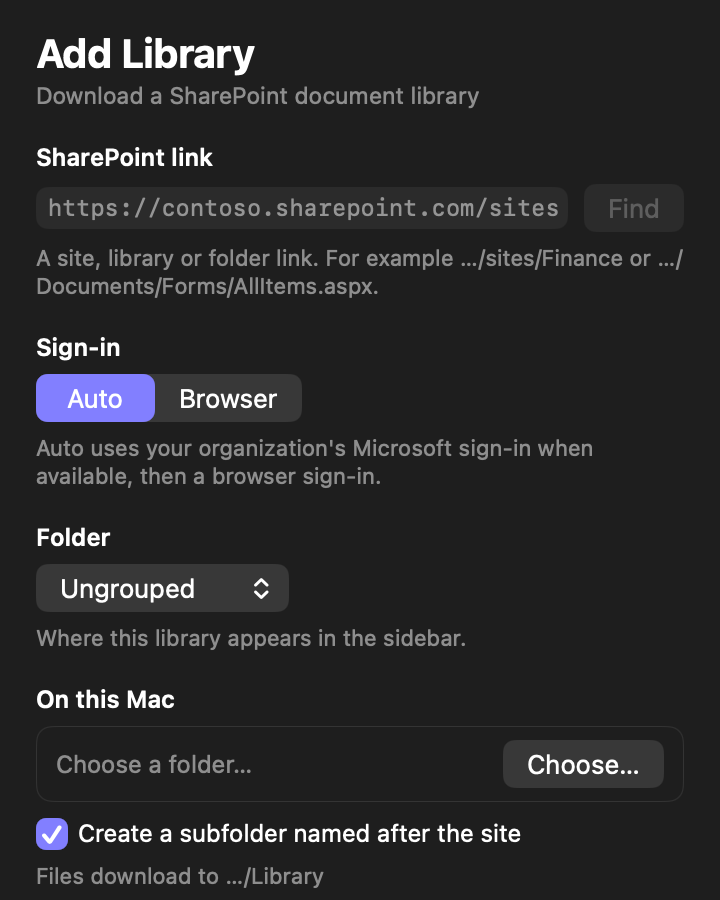
Open the library in SharePoint in your browser and copy the address from the address bar. A link to the site, the library or a folder inside it works.
2. Add the library in ShareClone
In ShareClone, choose Add Library and paste the link. ShareClone explores the site and lists its document libraries with their item counts, plus any subsites. Pick the library you want.
3. Sign in as usual
ShareClone opens a built-in sign-in window with your organization’s normal Microsoft login, multi-factor included. You type your credentials only into Microsoft’s page, and ShareClone never sees your password. The session is kept in the macOS Keychain, so later syncs do not ask you again until it expires.
4. Choose the folders and the destination
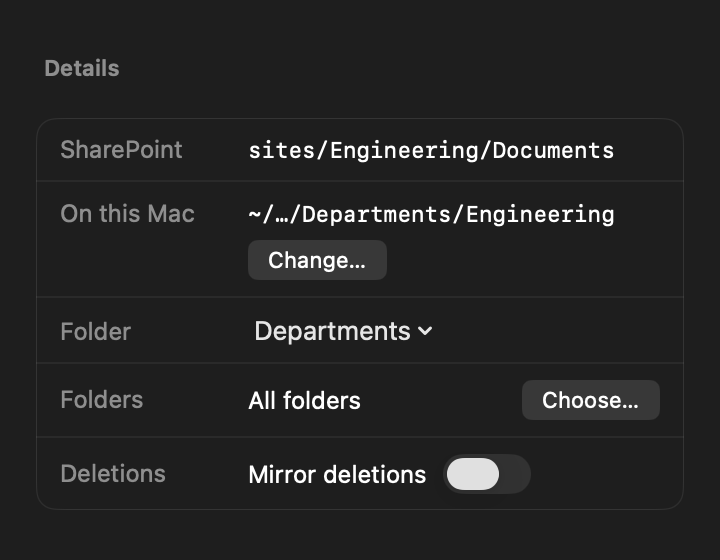
Select the whole library or only the folders you need. Choose a folder on your Mac for it, optionally with a subfolder named after the SharePoint site. Keep the destination path short if the library has deeply nested folders, because macOS limits how long a single name and a whole path can be.
5. Sync, and let it run
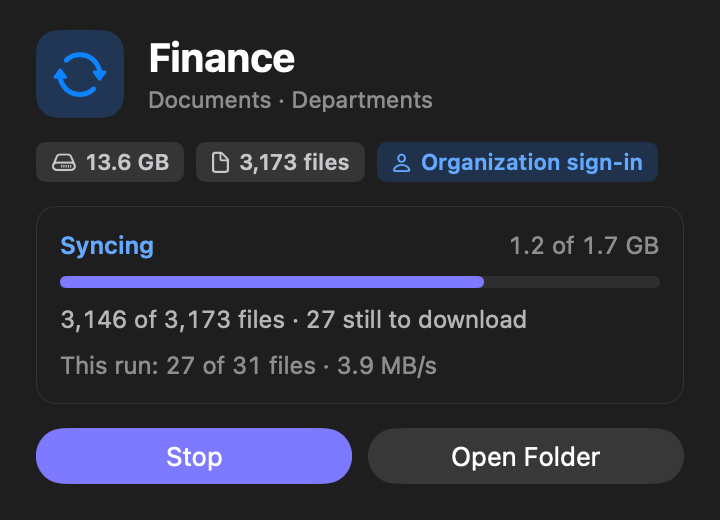
Start the sync. ShareClone downloads folder by folder in the background and shows exact counts, like “27 of 31 files”. If the network drops or the Mac sleeps, it keeps every finished file and the part of the file it was on, and continues when it can. When SharePoint slows requests down, ShareClone waits and retries.
6. Keep it up to date
Run a sync again whenever you want the latest files. Later syncs check each file’s version and size and download only what is new or changed. The library shows “Up to date” only when nothing is left to download.
If something needs attention
If files could not be downloaded after repeated tries, the library says how many and why, in the inspector and in the Activity log. Common reasons are a file that was removed or is no longer permitted, or a name that macOS cannot store. Fix the cause and sync again.
More guides
Keep a local copy of SharePoint with your normal Microsoft sign-in
How ShareClone signs in, what it can see, and where the session is kept.
Take SharePoint with you.


Coming soon to the Mac App Store
Free download. 14-day free trial.
Pricing details and purchase questions