




Paste a link.
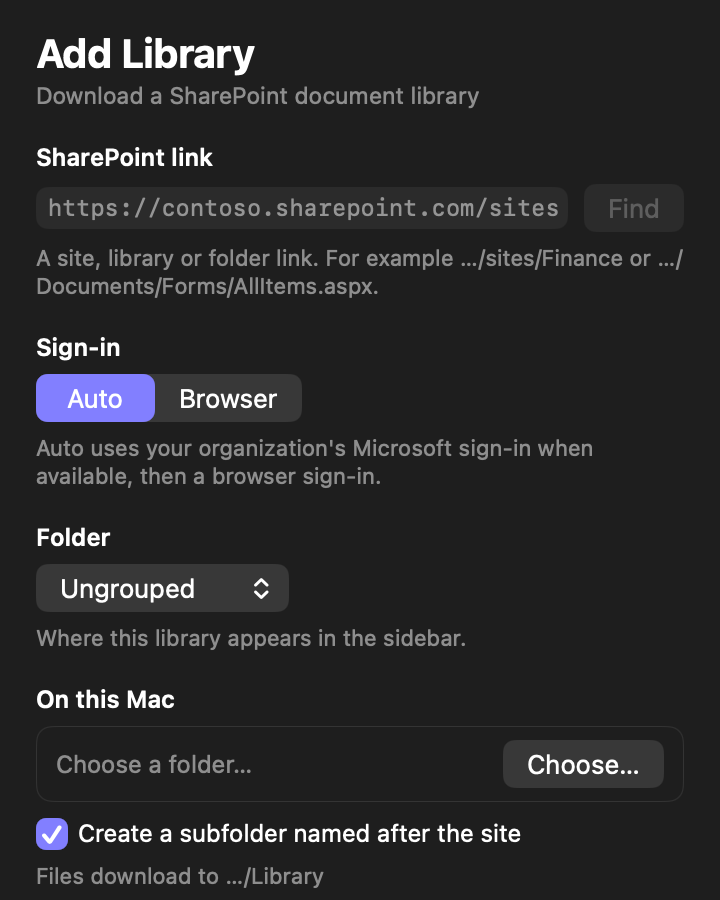
Copy any SharePoint link and add the library. Pick the folders you want and where they go on your Mac.
ShareClone keeps a copy of your SharePoint document libraries on your Mac for offline work. Later syncs fetch only what changed, an interrupted download continues where it stopped, and the app says done only when every file is.
Coming soon to the Mac App Store
Free to download. 14-day free trial.
See how it worksBuilt for locked-down Microsoft 365 organizations. No IT admin consent needed. A Mac app for macOS 15 or later.
Your files live in SharePoint. Your flight, your client site and your audit room have no reliable internet.
Downloading a library by hand means clicking through folders, starting over when the connection drops and guessing what changed since last time.
Getting a sync tool approved by IT can take weeks, if it happens at all.
Copy any SharePoint link and add the library. Pick the folders you want and where they go on your Mac.
A built-in sign-in window opens your organization’s normal Microsoft login, multi-factor included. ShareClone never sees your password.
Downloads run folder by folder in the background. Later syncs fetch only what is new or changed.
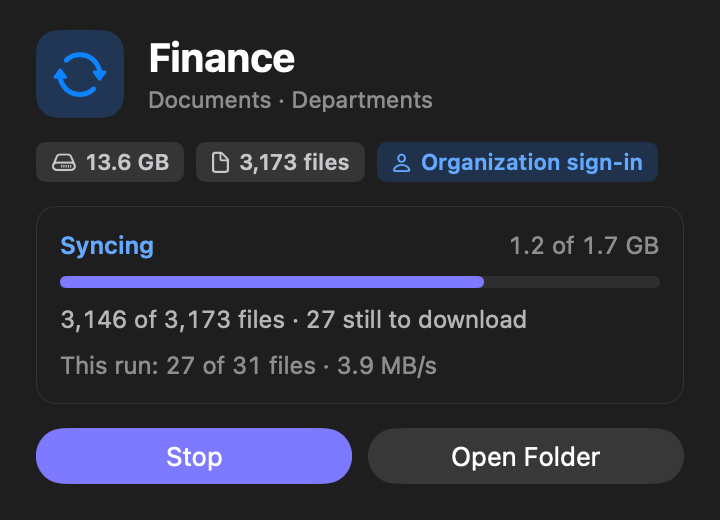
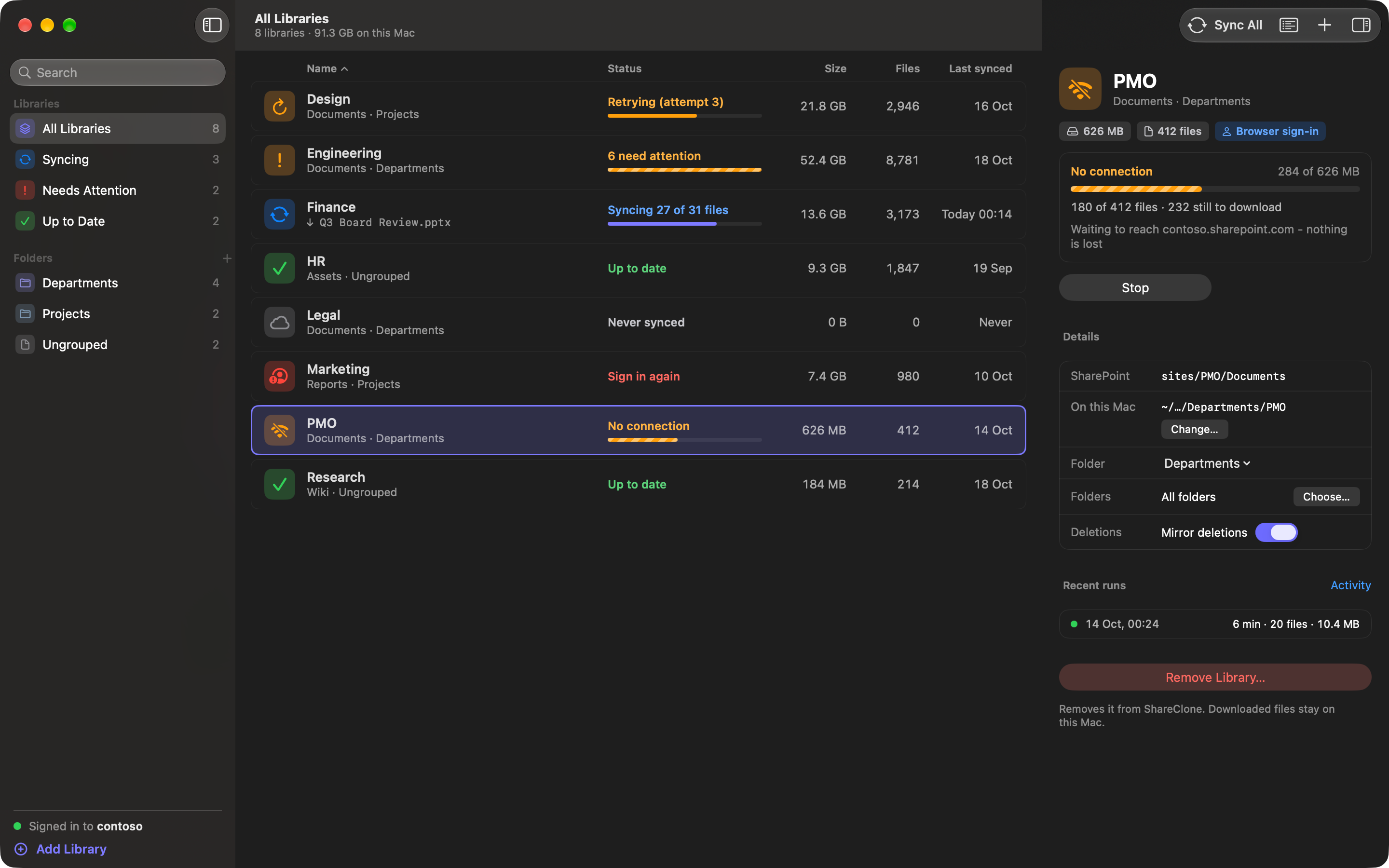
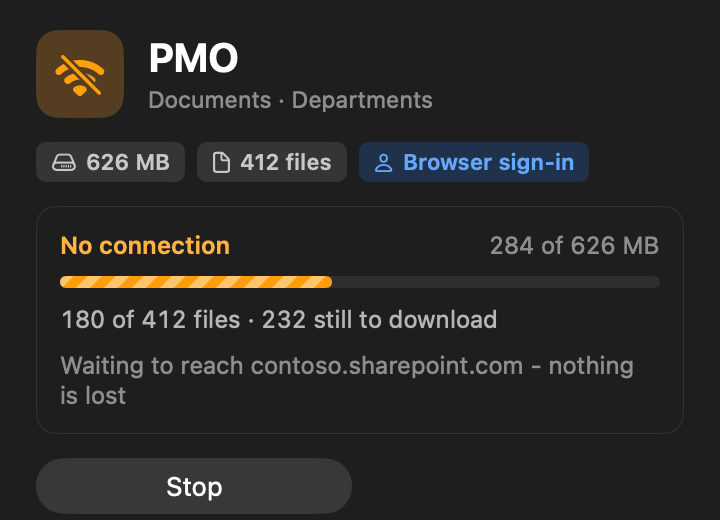
Cut the connection in the middle of a sync. ShareClone keeps every finished file and the part of the file it was on, waits, and carries on from there when the network is back.
Syncing.
Being offline is a normal state for ShareClone: the library shows “No connection” and resumes by itself. A file that changed in SharePoint in the meantime is fetched fresh.
Demo library with placeholder data.
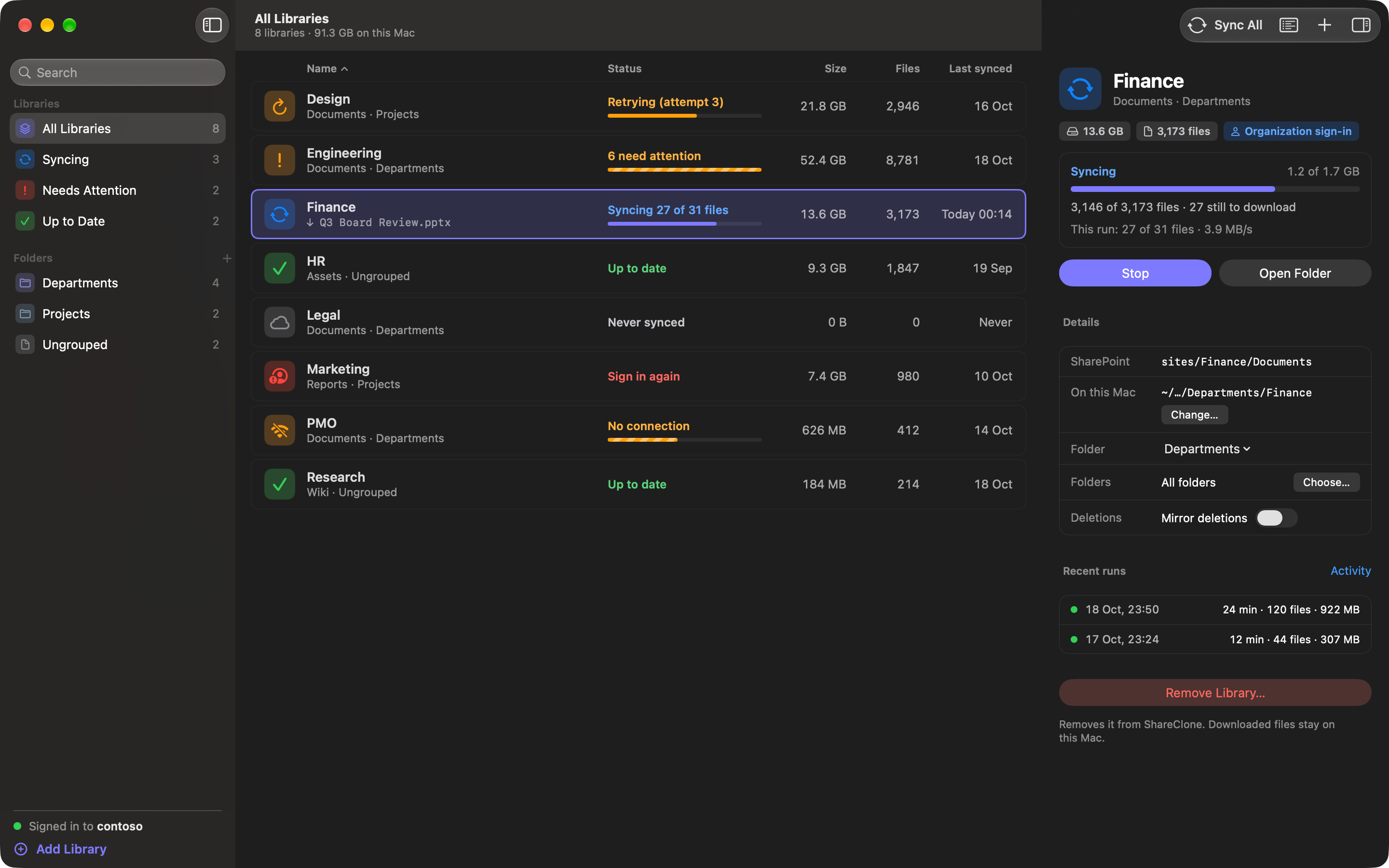
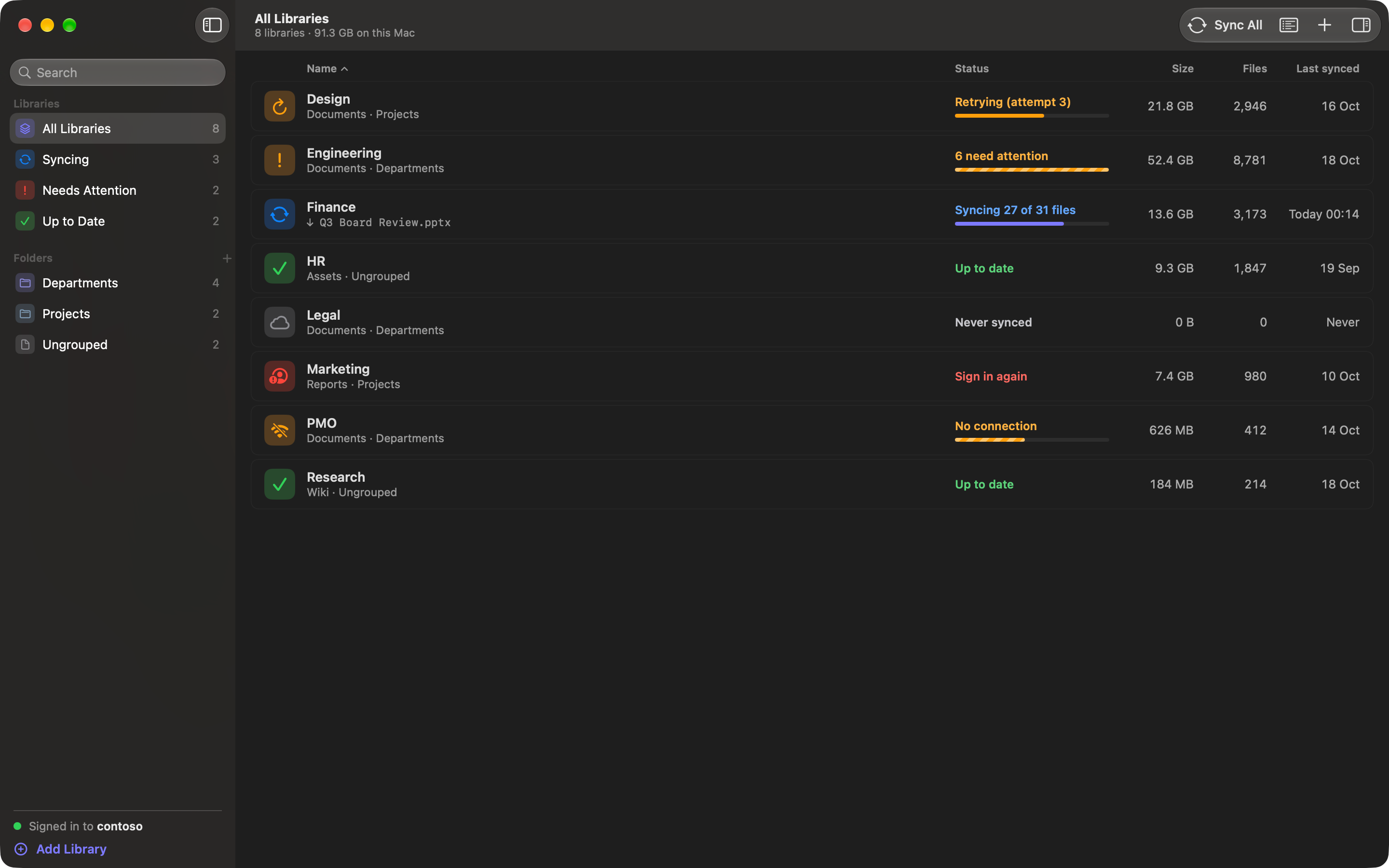
A native Mac app with a list and inspector layout, light and dark mode, system fonts and keyboard shortcuts.
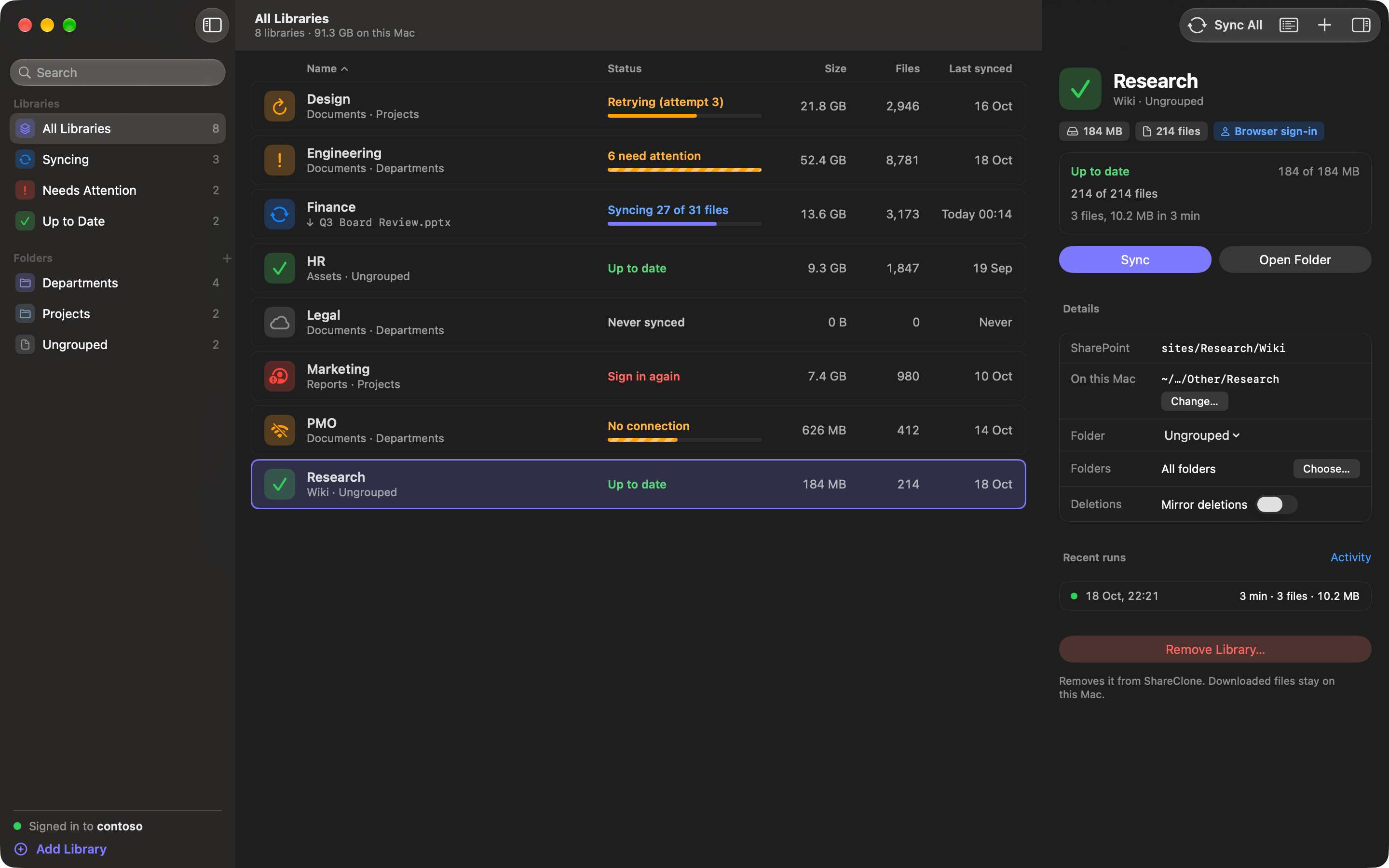
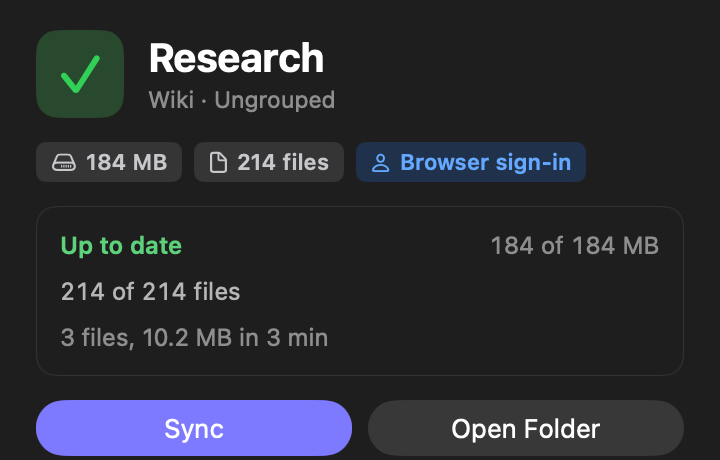
Every library shows one clear state and exact counts, like “27 of 31 files”. ShareClone says “Up to date” only when nothing is left, and a sync that ends with files missing says so.
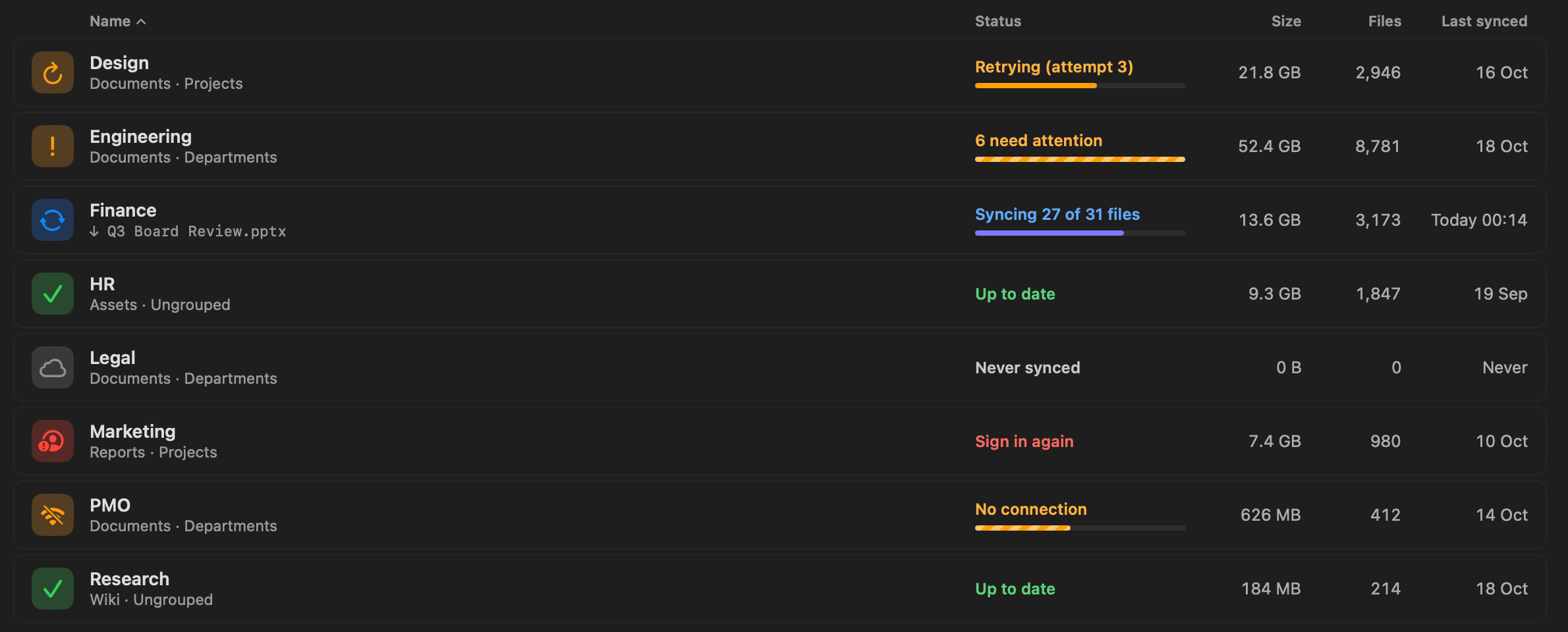
After the first copy, ShareClone checks each file’s version and size and downloads only new or changed files.
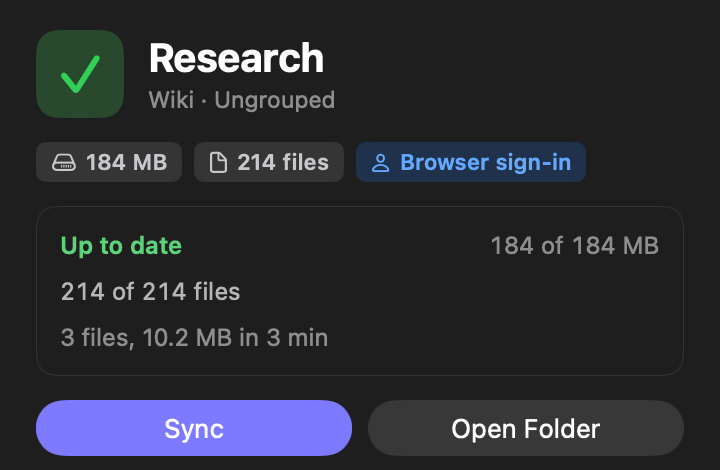
Pick folders inside a library, choose where each library goes on your Mac and group libraries in nested sidebar folders.
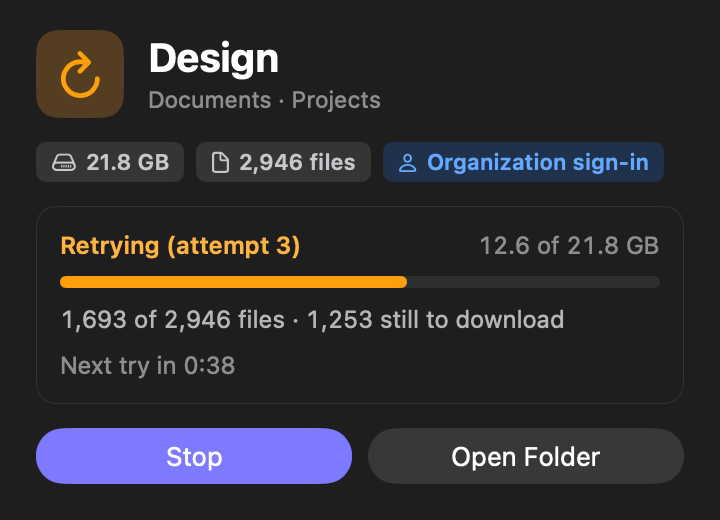
When SharePoint throttles requests, ShareClone waits as long as it is asked to and retries with growing pauses, so a large library still finishes.
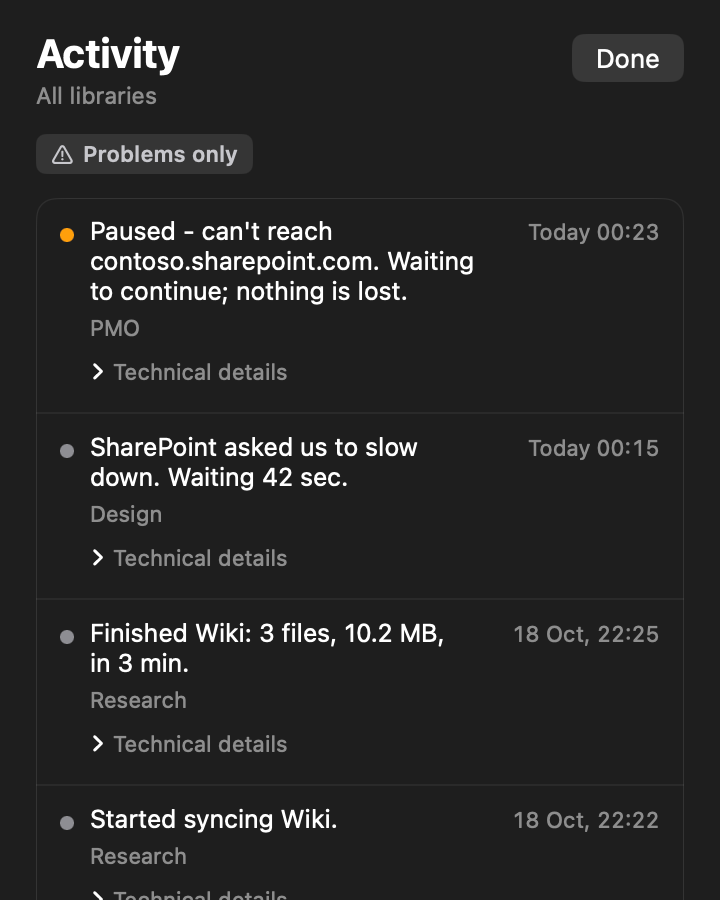
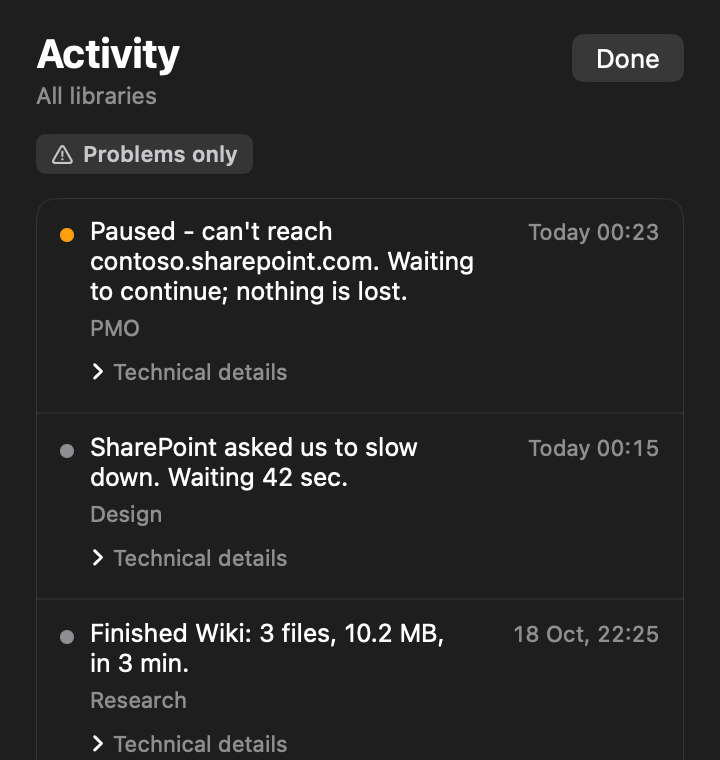
Activity describes each event in a plain sentence, newest first, with the technical details one click away.
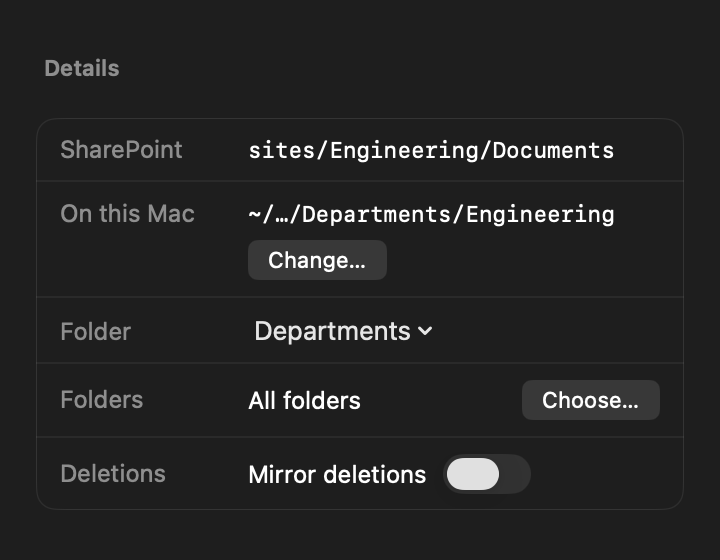
Mirror deletions is off by default. Turn it on and files removed in SharePoint leave your copy too. It only removes local files ShareClone downloaded.

With the menu bar item on, syncs keep running after you close the window. The menu bar shows the worst state across your libraries and a line for each one.
Notifications tell you when a sync finishes, needs attention or needs you to sign in again. Routine progress stays quiet.
When you come back, “While you were away” sums up what happened in each library.
ShareClone only reads from SharePoint. It never uploads, edits or deletes anything in SharePoint.
Your files and your sign-in stay on your Mac. ShareClone has no accounts, no analytics and no tracking, and nothing is sent to us.
ShareClone signs in through your organization’s normal Microsoft login in a built-in WebKit window. It does not need an app registration or administrator consent.
The session ShareClone uses is kept in the macOS Keychain. The sign-in window’s own on-device storage remembers your Microsoft login so you are not asked for MFA every time.
ShareClone talks only to your organization’s own SharePoint and Microsoft sign-in, and to Apple for purchases.
Free to download.
Try everything free for 14 days. No payment needed.
ShareClone Pro
$49.99 once (Lifetime).
$19.99 per year (auto-renewing subscription). The yearly subscription renews automatically each year until cancelled. Manage or cancel it any time in your Apple Account settings, at least 24 hours before the end of the current period.
When the trial ends without a purchase, syncing pauses. Your libraries, downloaded files and settings stay exactly as they are. Nothing is deleted.
Purchases are handled by Apple. Restore Purchases is available in the app.
Prices shown in US dollars. Your App Store shows the price for your country.
Coming soon to the Mac App Store
No app registration and no administrator consent are needed. You sign in with your normal Microsoft login in a built-in window, and ShareClone can only see what your own account can see.
Your organization’s own policies still apply, and some organizations restrict downloading company data; check yours.
Yes. You sign in on your organization’s own Microsoft sign-in page, so MFA and single sign-on work as they do in a browser.
The library shows “Sign in again”. Syncs you start yourself can open the sign-in window. Automatic syncs, at launch, after wake or from Sync All, never open a window on their own: they end with “Sign in again” and notify you if notifications are on.
Files already downloaded are untouched, and the sync continues after you sign in.
No. It only reads. It never uploads, edits, renames or deletes anything in SharePoint.
The optional “mirror deletions” setting removes only local files that ShareClone downloaded, and is off by default.
It is built for them: it works folder by folder, resumes after interruptions and fetches only changes on later syncs, with a progress line and exact counts. The first scan of a very large library can take a few minutes, and the item count keeps rising while it works.
The library shows “No connection”, waits and resumes by itself when you are back. After sleep, ShareClone resumes, and the Activity log notes that the computer was asleep.
To the folder you choose for each library, optionally in a subfolder named after the SharePoint site. ShareClone never moves them afterwards.
The list of libraries, the history and your settings are stored in ShareClone’s own app data on your Mac.
Syncing pauses. Libraries, downloaded files and settings stay; nothing is deleted. Buy Pro (Lifetime or Yearly) to continue.
No. ShareClone is an independent product of Davidovski GmbH. It is not affiliated with, endorsed by or sponsored by Microsoft or Apple.
Coming soon to the Mac App Store
Free download. 14-day free trial.